What is a company account?
With a company account, you can invite your colleagues to collaborate on ordering at HelloPrint. With a company account, you and your colleagues can place orders, approve artwork, and share invoices.
- Want to give your designer access to upload and approve designs for your orders?
- Need to share invoices for your orders with your colleagues from accounting?
- Going on leave and planning to hand over your orders to a colleague?
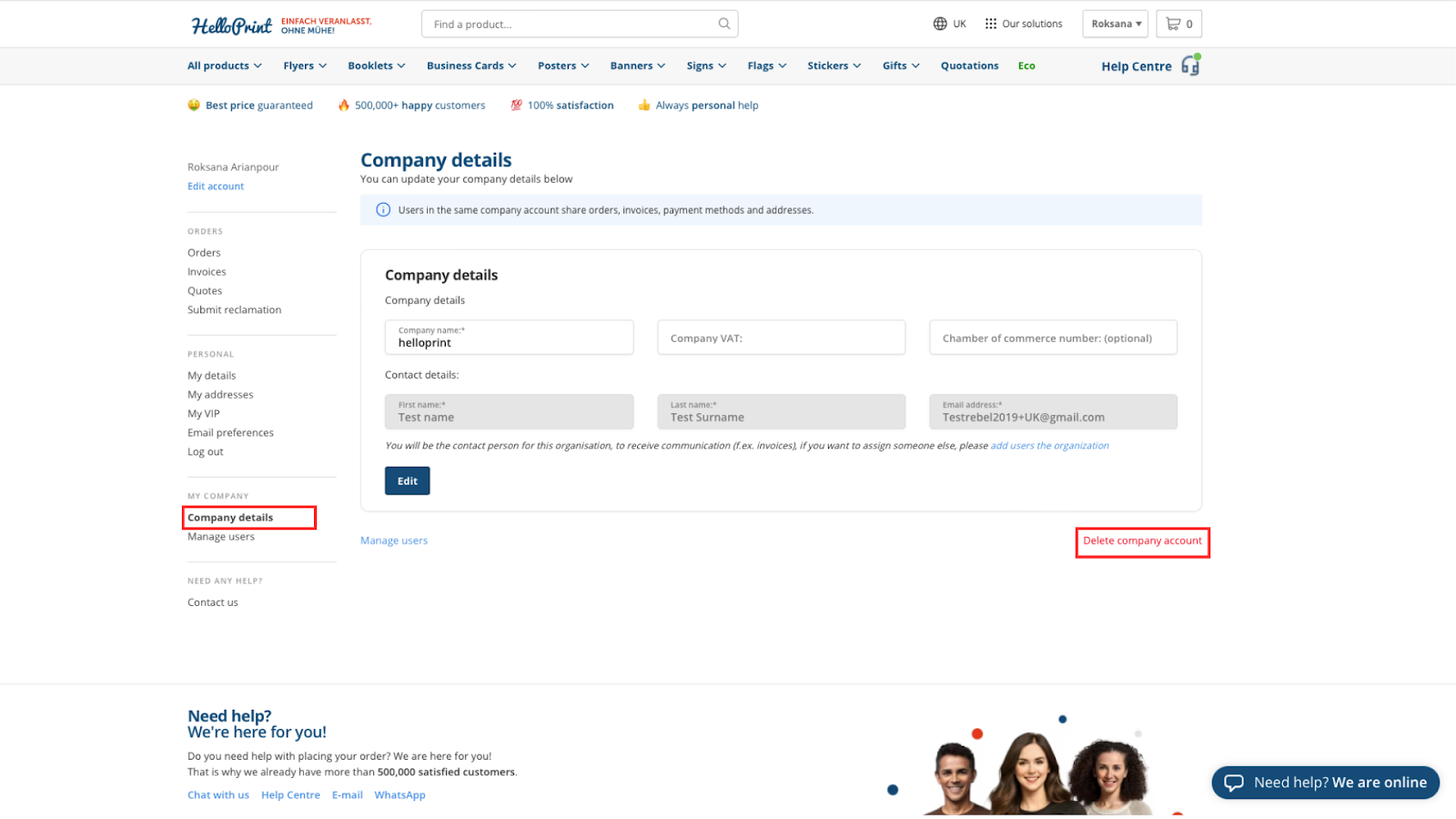
Access our “Company Account” feature from the “My Account” page. Invite your colleagues and start the collaboration.
Create a company account
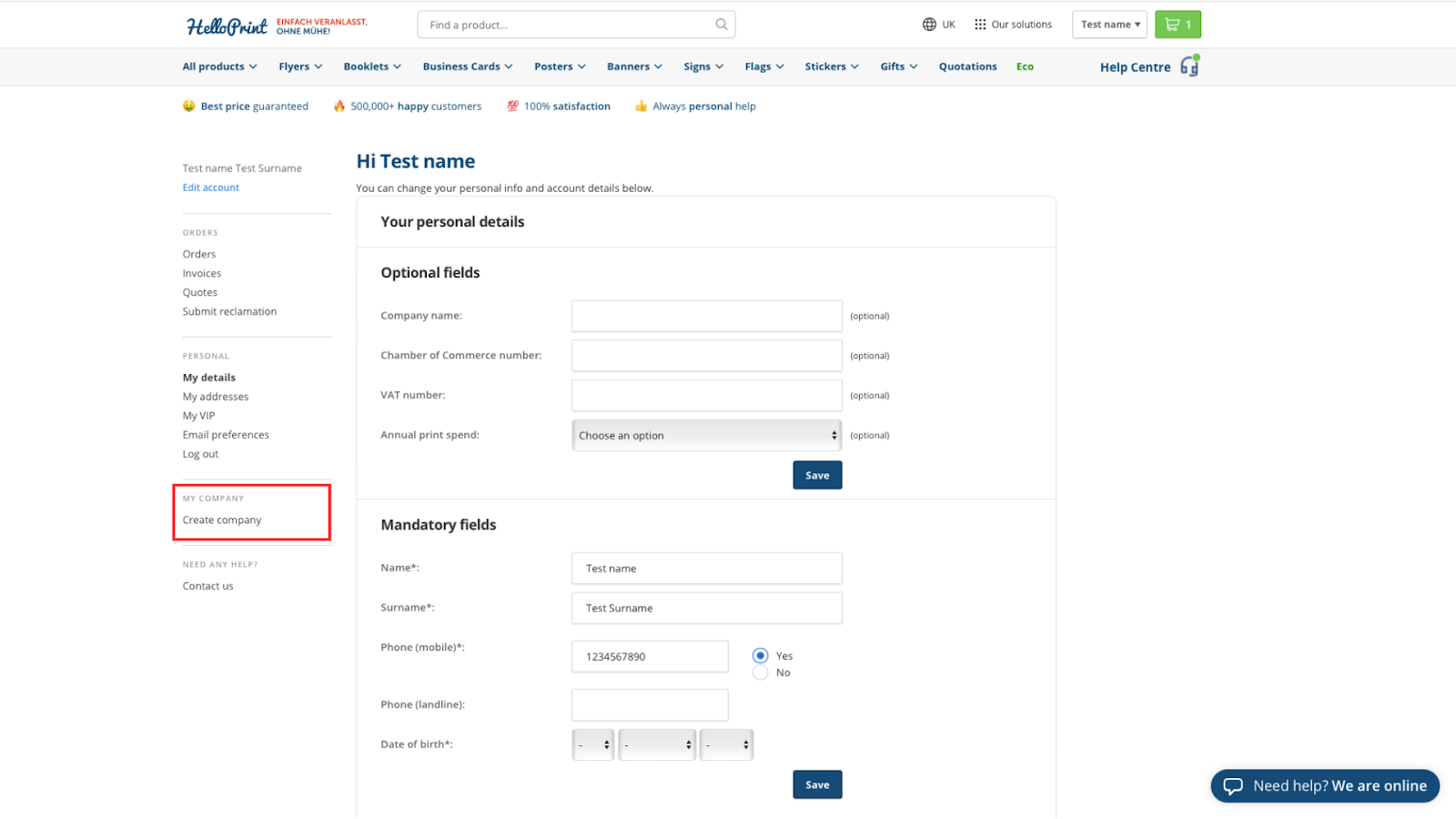
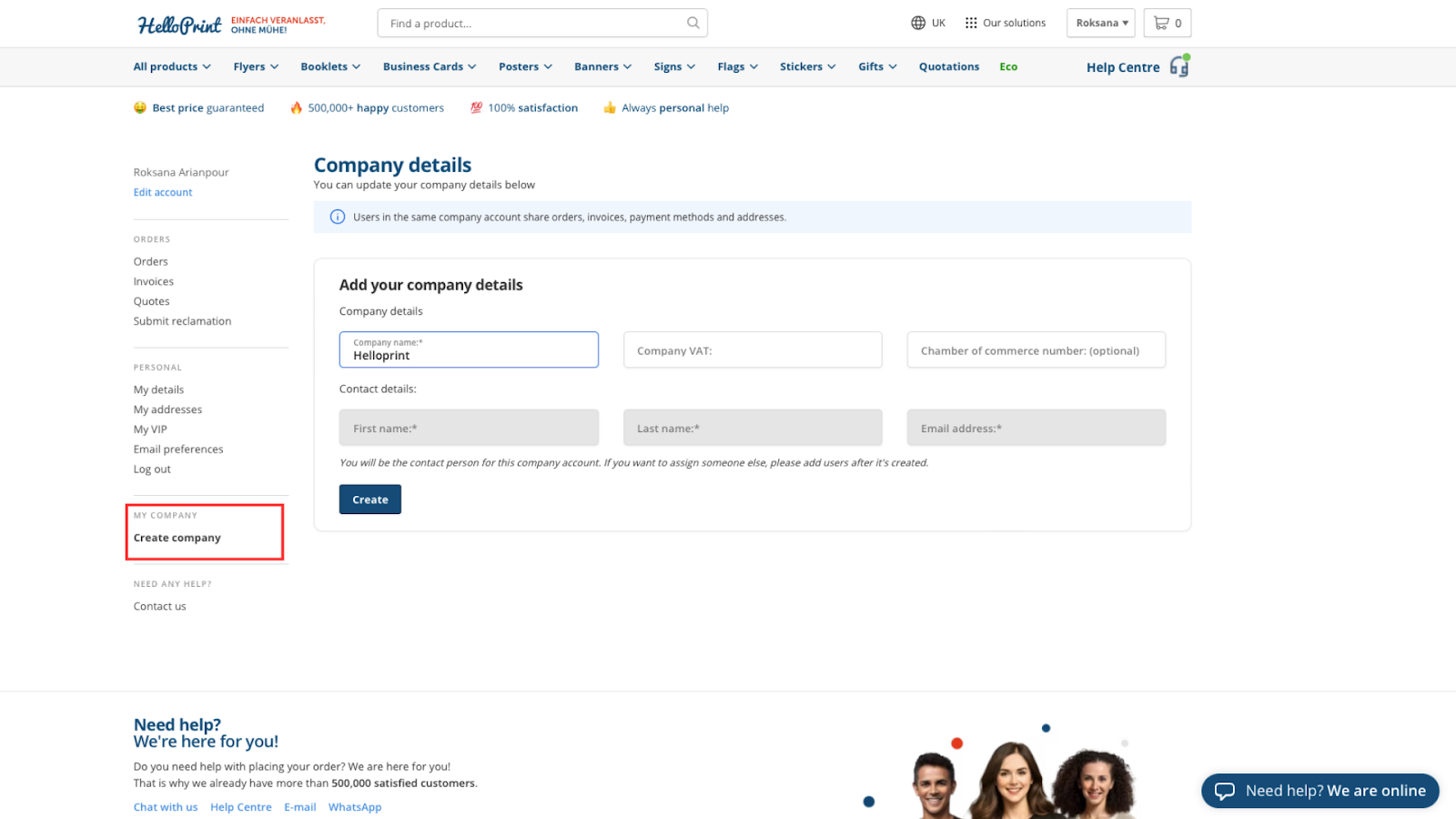
To create a “Company Account" log in to HelloPrint with your email, go to “Create Company Account” in “My Account” Add your company name to set up the account. You can also include your VAT number and Chamber of Commerce information. Your personal information including the first name, last name and email will be filled in automatically after you create the account.
As the account creator, you will be the first user of your company account and the contact person. Once the account is created you will gain access to the “Manage Users” page where you can invite other colleagues.
Users overview
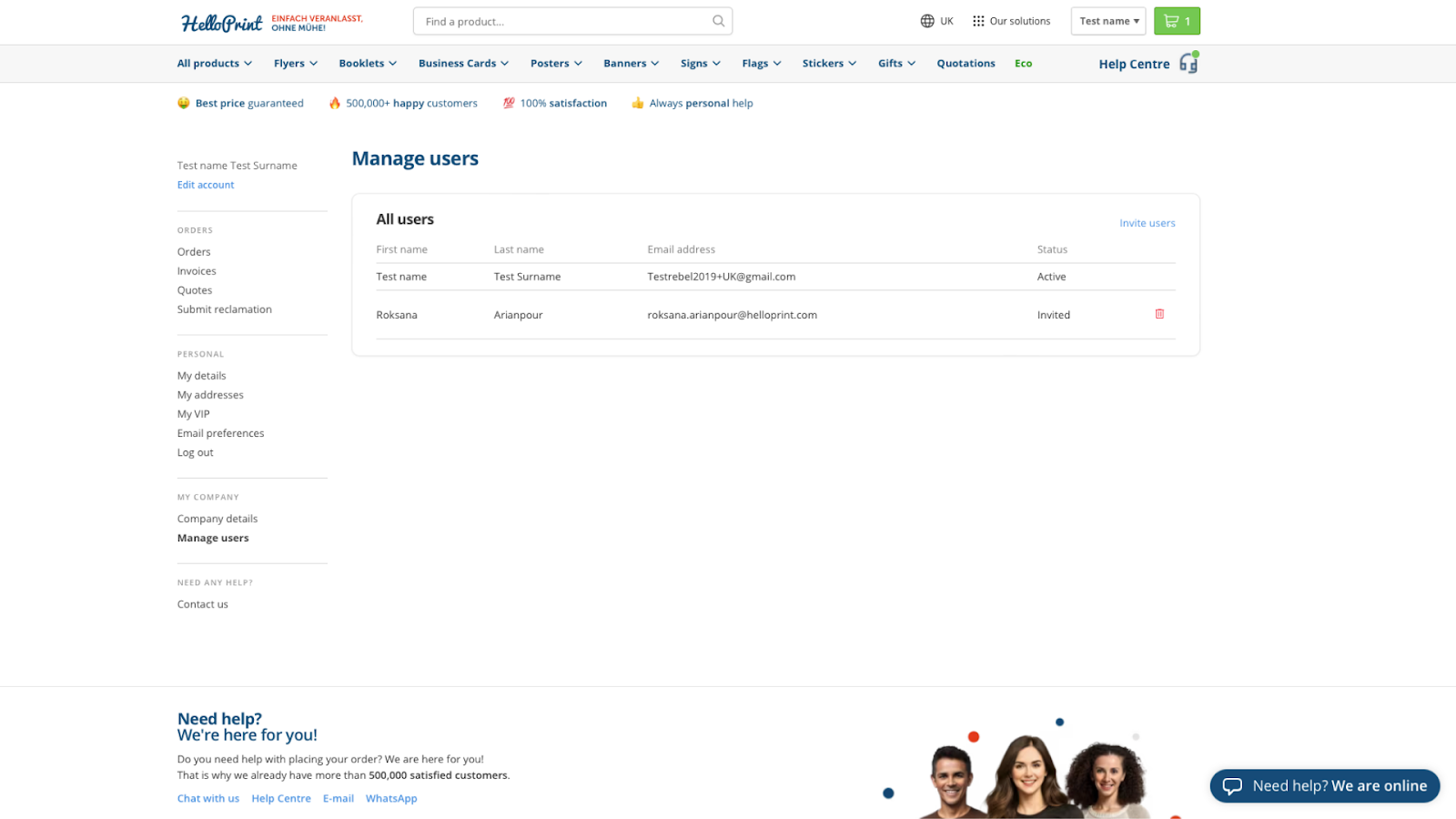
You can see all users in your company account on the “Manage users” page in “My Account”. In the overview, you will see all the users with their status. You can also invite new users and remove users on this page.
If the user is invited but has not yet accepted or rejected the invite, their status will be “Invited”.
If the user has accepted the invitation and joined the company account, their status will be “Active”.
If the user has rejected the invitation, their status will be “Rejected”. In case you want to re-invite a user who previously rejected the invitation, you can delete the user on the “Manage users” page and invite them again.
Inviting new users
To start collaborating, invite new users to join your company account. To do so, go to the “Manage users” page in “My account”.
To invite a user, you need to provide their email address, alongside their first and last name. You can invite multiple users simultaneously to the company account. Invited users will receive an invitation via email. The invitation expires after 96 hours, after which you can send the user a new invitation if needed. Once the invitation is successfully sent, you will receive a confirmation email from us.
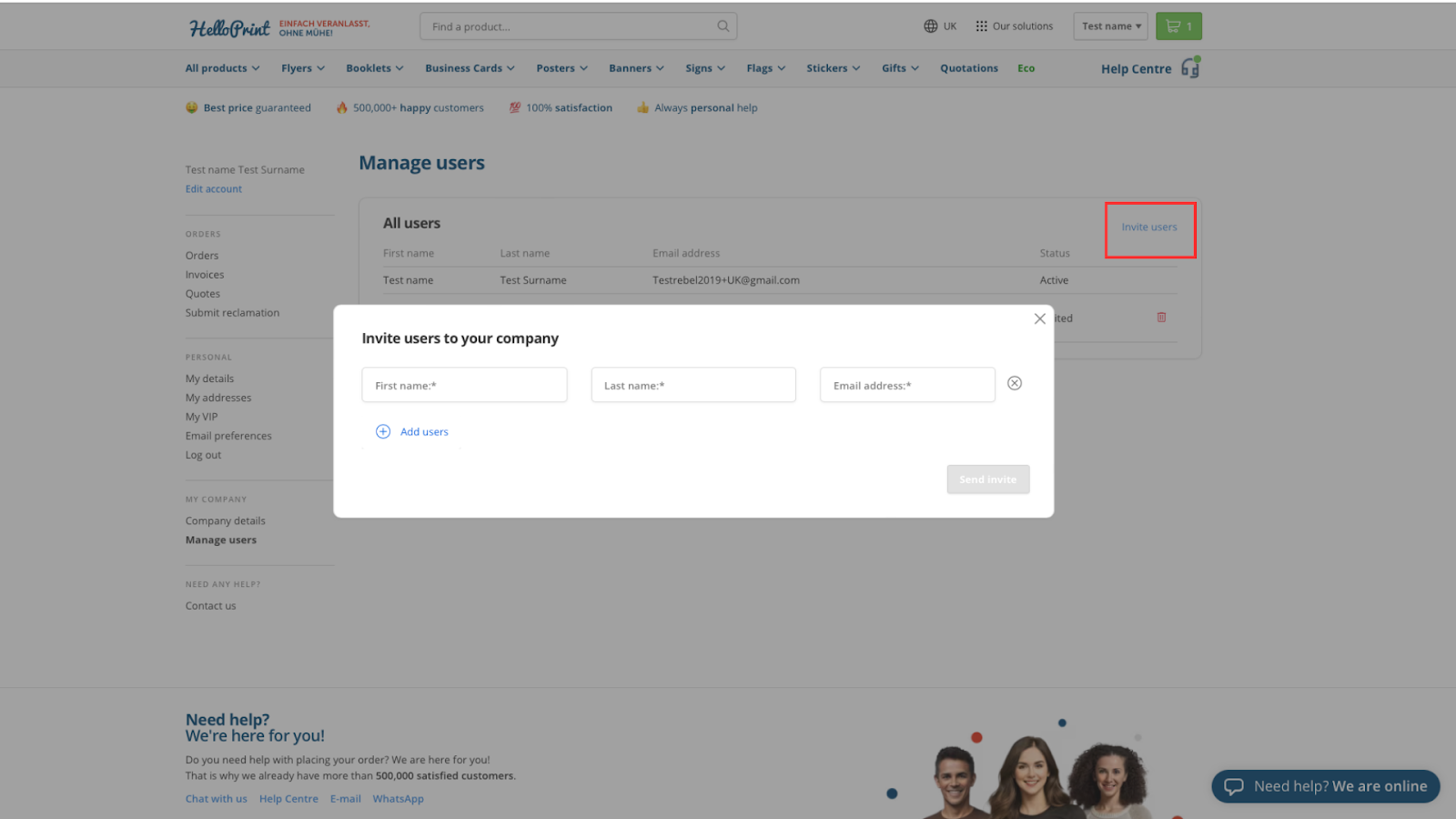
Once a new user is invited, they receive an email with the invitation which they can accept or reject. If they accept the invitation, the user will be redirected to the “Company Account” page on “My Account”. If the user does not have a HelloPrint account yet, they will need to create one before accepting the invitation. If the user rejects the invitation, you can delete their record in the “Manage Users” page and re-invite them if needed.
You will be updated on the status of your invitations via email and on the “Manage Users” page.
Once a new user joins your company account, they will be able to see all the orders placed by the company account members, access the shared address book and the invoices. They will also get permission to add users to the company account, set a contact person, and edit or delete the company account.
User permissions in a company account
All the users in a company account can view all the orders placed by the company account members in their HelloPrint account. They can access the shared address book and invoices. They are also allowed to add new users to the company account, set a contact person and edit or delete the company account.
Orders, invoices and addresses of the company account
To view the orders, you can go to the “Orders” page. As a company account member, you will view all the orders your active colleagues placed by their HelloPrint account.
To view the invoices, you can go to the “Invoices” page. Here you will have access to all the invoices of orders placed by your colleagues with their HelloPrint account.
To view the addresses, you can go to the “Addresses” page. As a company account member, you will view all the addresses saved by your colleagues in their HelloPrint account.
Deleting users
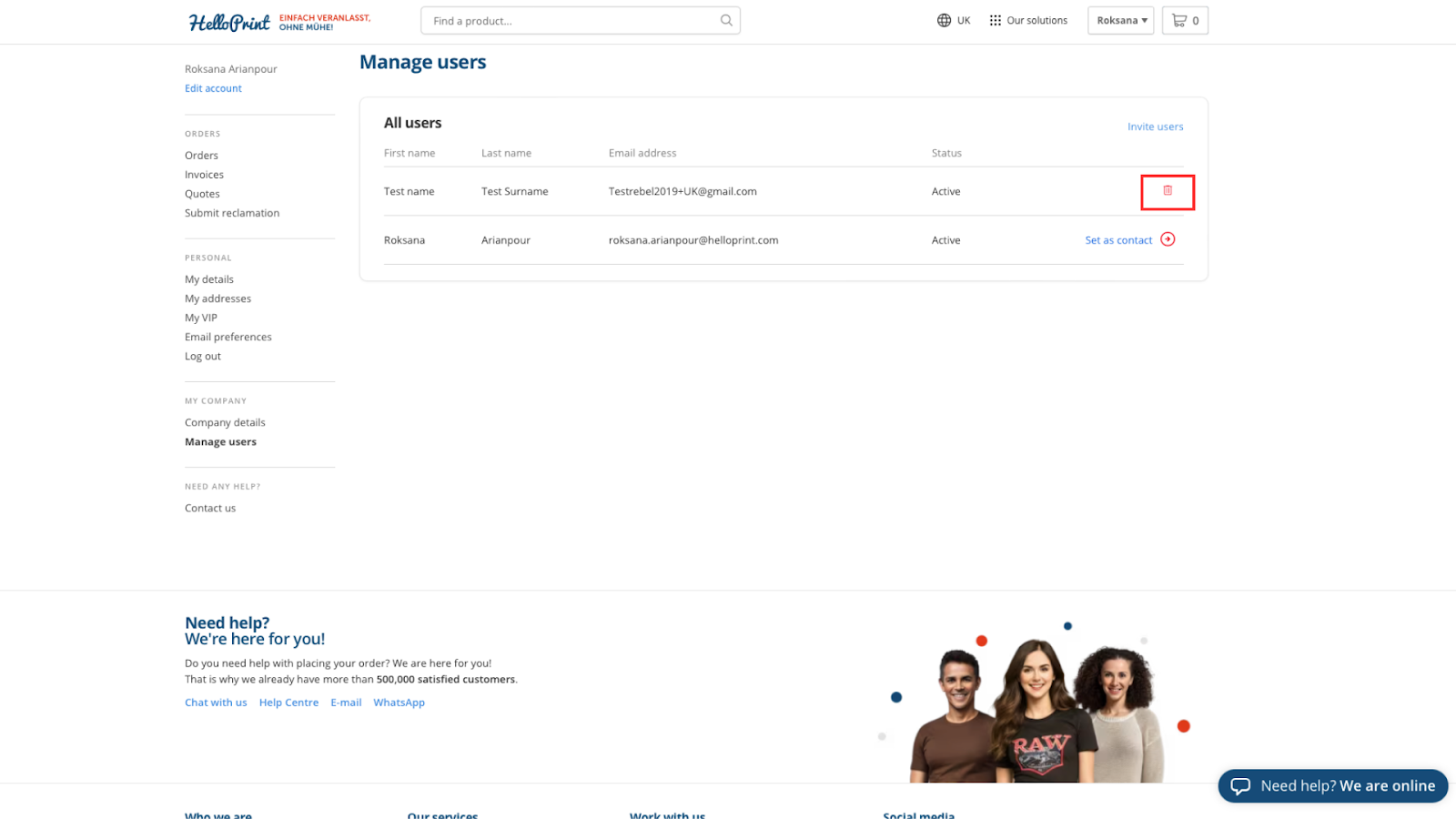
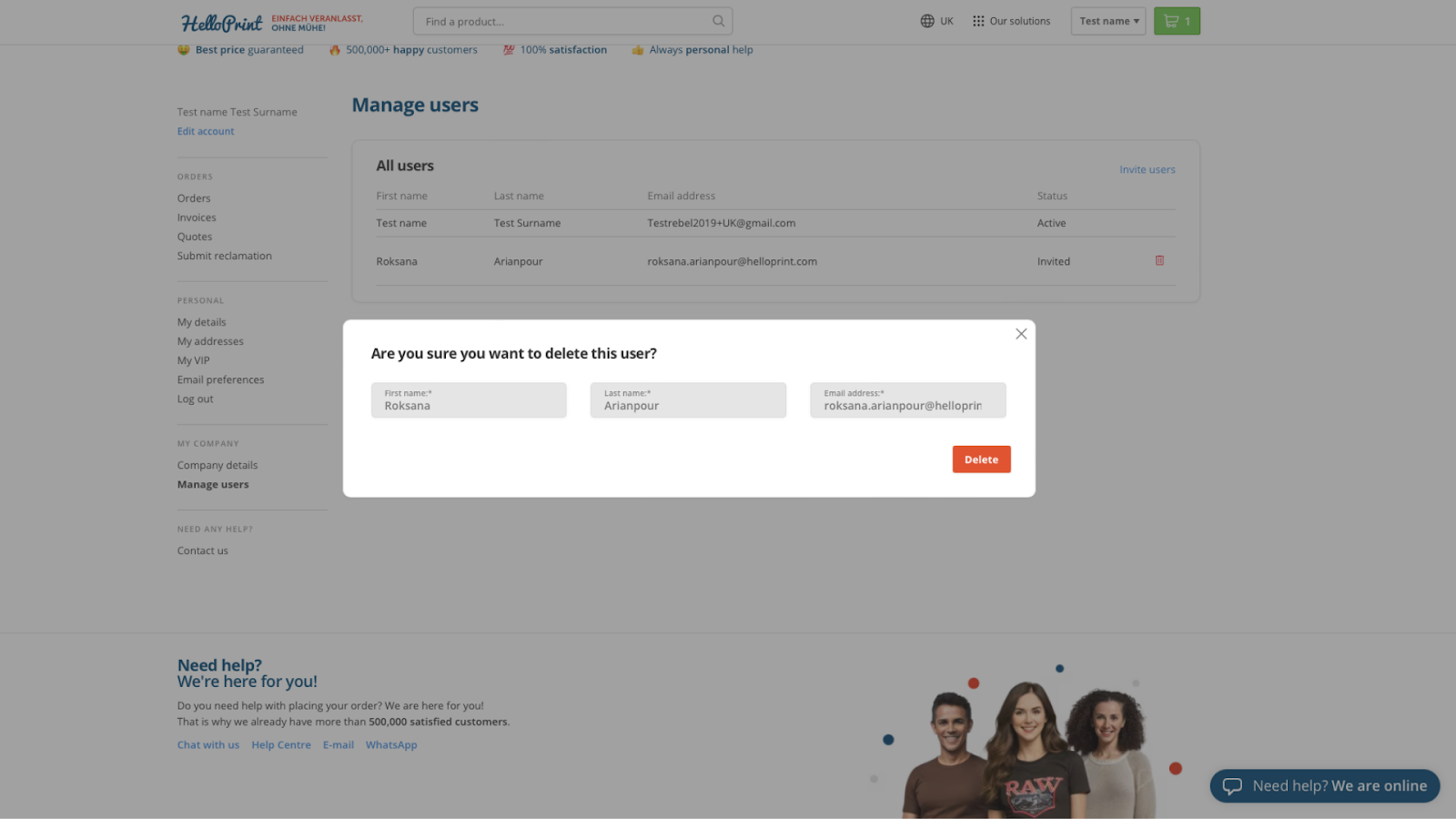
If you would like to remove any users from the company account, you can do so on the “Manage users” page in “My Account”. Click on the “Delete” icon next to the user you want to delete.
If a user is deleted, they will lose access to the company account details and the orders placed by colleagues. Users will keep their Helloprint account and all the orders placed by them (including the orders they placed as part of the company account).
After a user is deleted, The orders they placed before joining the company account will no longer exist in the company account. This can affect the VIP level of the company account as the order history of these users will no longer count towards the annual print spend of the company account.
Leaving the company account
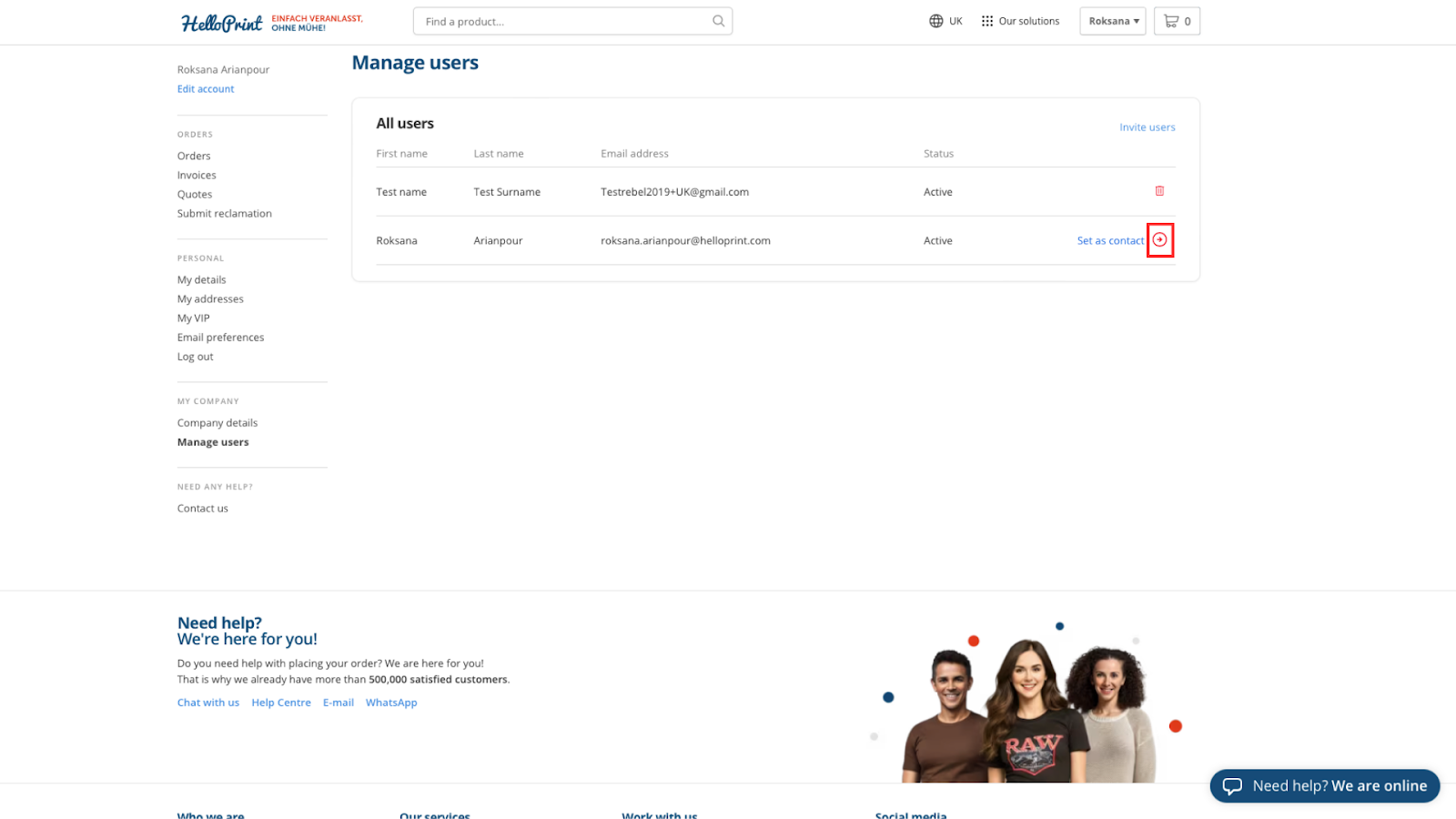
If you would like to leave the company account you can go to the “Manage Users” page in “My Account”. After you leave the company account, you will lose access to all shared invoices, orders and addresses. You will keep access to all the orders you placed with your HelloPrint account (also placed while part of the company account) and your VIP level will be recalculated based on your own orders.
VIP logic for company accounts
Company accounts follow the same VIP logic as all other accounts. All users of the company account share the same VIP level as the company account and enjoy the relevant discounts and benefits.
The annual print spend for the company account is calculated based on the sum of the annual print spends of all current users. Orders placed before users were invited to company accounts are also included in the calculation of the VIP level.
If a new user is added to the organisation, their annual print spend is included in the calculation of the VIP level.
If a user is deleted, the orders they placed while being part of the company account still count towards the annual print spend. The orders placed before users were invited to company accounts will not be included anymore.
Setting a contact person
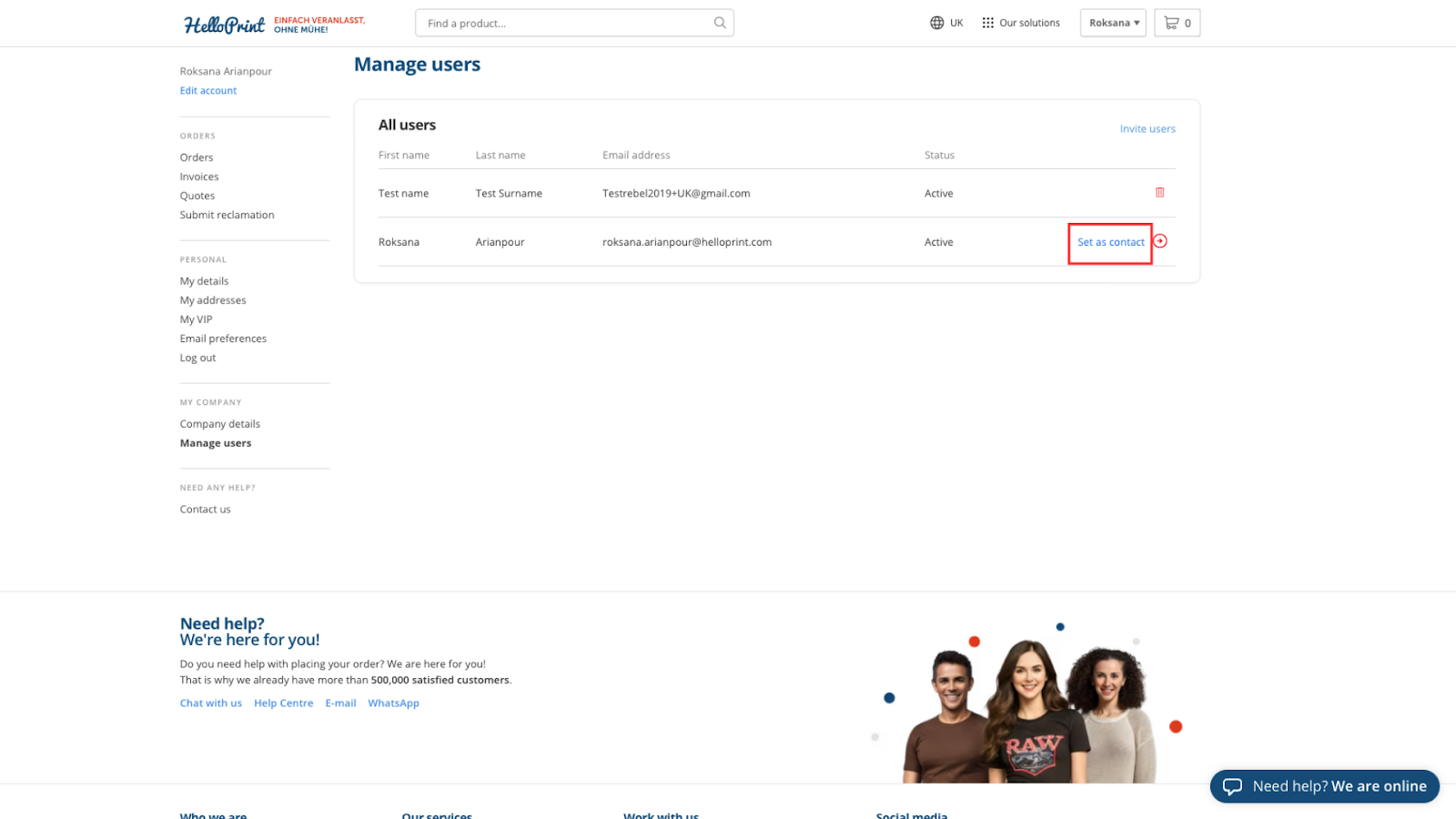
The contact person of the company is the person we will contact in case we need to send any specific company-related information.
All users can change the contact person by selecting a different active user in the “Manage users” page of the company account.
By default, the person who starts the company account is the contact person. If there is only one user in the organisation, they will be considered the contact person for the company account.
Editing the company account details
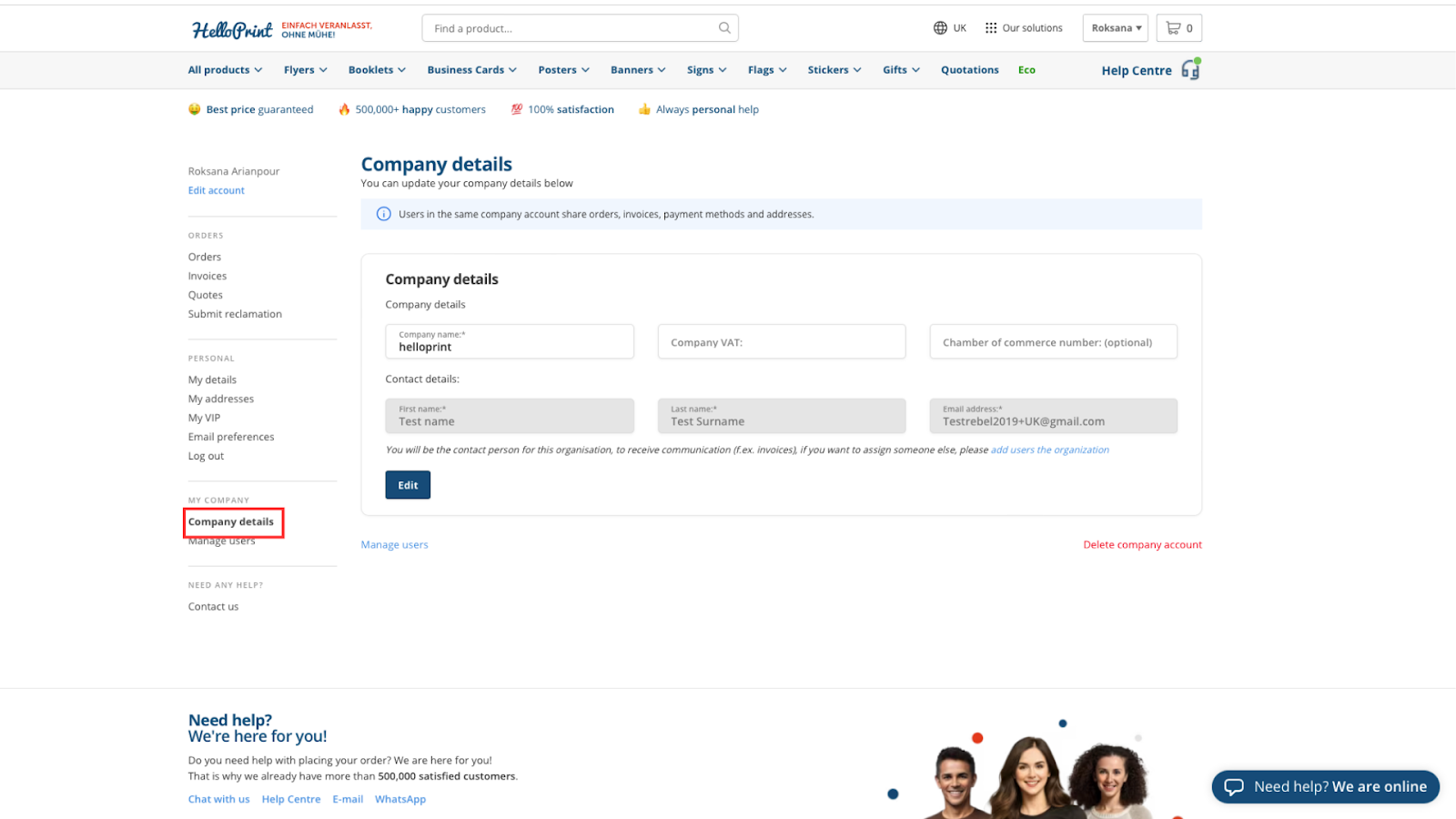
If you want to edit your company account details you can do so on the “Company details” page. On this page, you can change the company name, your VAT number and Chamber of Commerce information. All active members of the company account can edit these details.
Deleting company account
You can delete the company account via the page “Company details”. To delete the account, click “Delete” and confirm.
All users of the company account have the permission to delete it.
If the account is deleted, all users will lose access to shared addresses, invoices, and orders. Each user will have the orders they placed with their HelloPrint account and each VIP level will be defined on individual annual print spend.